
This guide explains how Walnut Creek Little League (WCLL) uses GameChanger for team management, scheduling, and scorekeeping. It is written for Division Commissioners, Managers/Coaches, and Board Members and reflects our standard league workflow.
Overview: How GameChanger Is Used at WCLL
At a high level, the process works like this:
- Division Commissioner creates a GameChanger League Organization for their division.
- Managers / Head Coaches import their teams from SportsConnect into GameChanger.
- Division Commissioner invites those teams into the League Organization.
- Division Commissioner + Board finalize and manage the master schedule.
- The schedule is published in GameChanger and automatically appears on each team.

Step 1: Create the GameChanger League Organization
Role: Division Commissioner
Each division (e.g., AA, AAA, Majors, Juniors) should have its own GameChanger Organization. This keeps schedules, standings, and stats clean and division‑specific.
Steps
- Open the GameChanger app (iOS or Android) or go to the web interface.
- Choose Create Team, then select Create an Organization.
- Select League as the organization type.
- Enter the organization details:
- Organization name (example: WCLL – AAA Baseball)
- Sport (Baseball or Softball)
- Season (Spring 2026, Fall 2026, etc.)
- Location and governing body (Little League)
- Save the organization.
Helpful Link
Step 2: Managers Import Their Teams from SportsConnect
Role: Manager / Head Coach
This is the preferred and expected method for team setup at WCLL. Importing from SportsConnect ensures rosters and schedules stay in sync.
Requirements (Before Importing)
- Team roster must be published in SportsConnect.
- Manager must be listed as an allocated volunteer for the team in SportsConnect.
- Manager must sign into GameChanger using the same email address used in SportsConnect.
How to Import a Team
- Open the GameChanger app.
- Sign in with the same email used for SportsConnect.
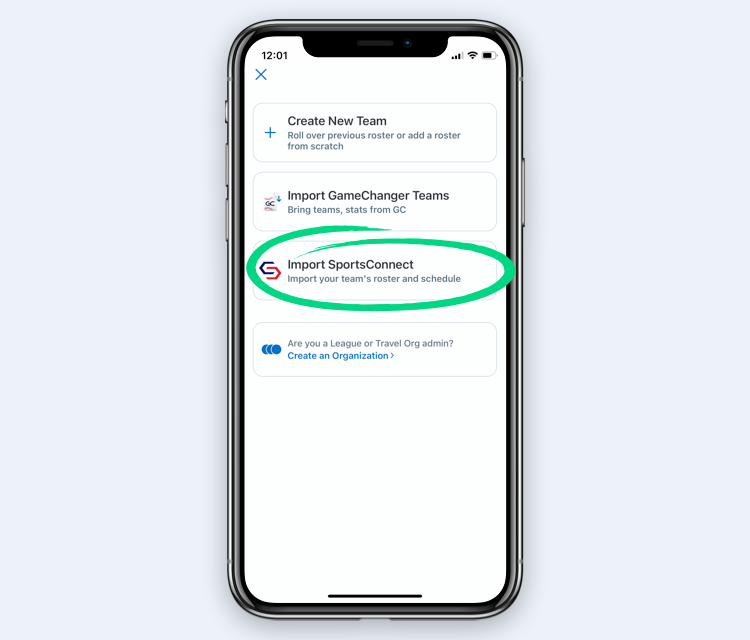
- Tap Create Team or the “+” icon.
- Select Import Sports Connect.
- Confirm your email address if prompted.
- Select the correct team and tap Import.
Once complete, the team roster and schedule will automatically sync from SportsConnect.
Important Notes
- A team can only be imported once to avoid duplicates.
- Roster and schedule updates made in SportsConnect will sync into GameChanger.
- Changes made directly in GameChanger do not sync back to SportsConnect.
Helpful Link
Step 3: Invite Teams into the League Organization
Role: Division Commissioner
Once managers have imported their teams, they must be added to the league organization.
Steps
- Open the League Organization in GameChanger.
- Navigate to Teams.
- Choose Invite Teams to Join.
- Invite teams by link or by searching for existing GameChanger teams.
- Managers accept the invitation from their team account.
After acceptance, the team becomes part of the division organization.
Helpful Link
Step 4: Schedule Management and Import
Role: Division Commissioner (in coordination with the Board)
WCLL maintains the official master schedule in SportsConnect. GameChanger pulls from that schedule.
Recommended Method: Bulk Schedule Import
- Export the division schedule from SportsConnect as a CSV file.
- Open the CSV in Google Sheets or Excel.
- Adjust the file to meet GameChanger requirements:
- Combine field/location into a single location column
- Format times as HH:MM AM/PM
- Add a duration column (in minutes)
- Ensure columns are ordered correctly (date, time, home, away, location, duration)
- Save the updated CSV.
- Upload the CSV using the GameChanger League Bulk Schedule Import tool.
Once imported, games automatically appear on:
- The League Organization schedule
- Each individual team’s schedule
Important Notes
- Do not manually recreate league games on individual team schedules.
- Duplicate games can occur if both manual entry and imports are used.
Helpful Links
Step 5: Publishing, Scorekeeping, and Standings
- Once the schedule is imported, it is considered published.
- League standings update automatically from head‑to‑head games.
- One official scorekeeper should be designated per game.
Helpful Link
Best Practices for WCLL
- ✔ Use SportsConnect as the system of record for rosters and schedules.
- ✔ Import teams instead of creating them manually.
- ✔ Create one GameChanger organization per division.
- ✔ Avoid manual schedule edits unless absolutely necessary.
- ✔ Add multiple organization admins (Commissioner + Scheduler) for redundancy.
Questions or Issues?
If you encounter problems importing teams, syncing schedules, or managing your division organization:
- First, review the GameChanger Help Center articles linked above.
- If issues persist, contact GameChanger Support directly through the app.
Thank you for helping keep Walnut Creek Little League organized and running smoothly!