
How to Import Your Walnut Creek Little League Team from Sports Connect into GameChanger
Coaches and Team Managers in Walnut Creek Little League can seamlessly bring their team’s roster and schedule from Sports Connect into GameChanger. Follow these steps to ensure your players and game information transfer correctly.
Before You Begin
- Download & Install GameChanger
- Go to the App Store (iOS) or Google Play (Android) and install the GameChanger app.
- Ensure the Following:
- You use the same email address for both GameChanger and Sports Connect.
- Your team’s roster is posted on the Walnut Creek Little League Sports Connect website.
- You’re listed as an allocated volunteer for your team on Sports Connect (contact our Walnut Creek LL Admin if you need help updating your volunteer status).
Steps to Import Your Team
- Open the GameChanger App
- Sign in using the same email address you have on file with Sports Connect (Walnut Creek Little League’s official registration system).
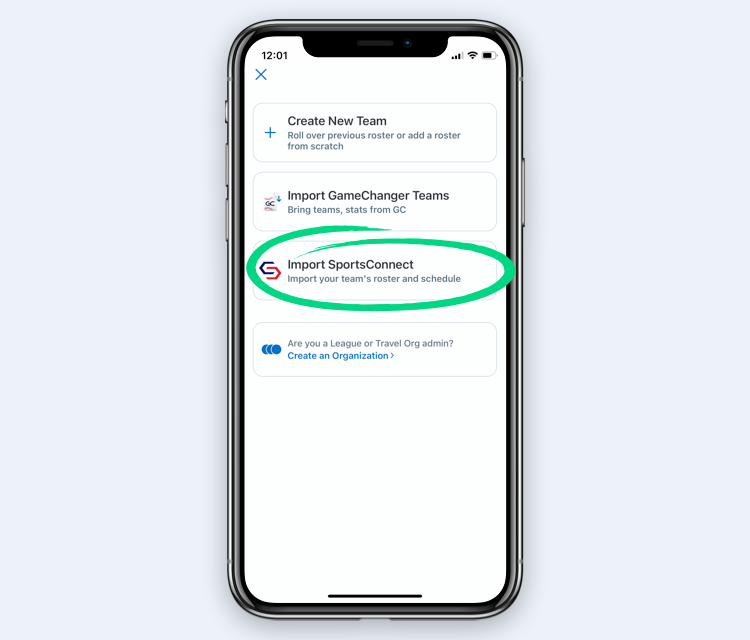
- Tap “Create Team” (or the “+” icon)
- You’ll see an option to Import Sports Connect
- Confirm Your Email Address
- If prompted, tap Open Email App and select Confirm Email Address in the email you receive. Once confirmed, you’ll automatically return to the GameChanger app.
- Choose Which Team(s) to Import
- You’ll see a list of teams associated with your email in Sports Connect.
- Check the box next to the Walnut Creek LL team(s) you want to import.
- Tap Import in the upper corner. You’ll see the import status at the bottom of your screen.
What Updates Automatically
- Schedule & Roster Sync
- After importing, any updates made in Sports Connect to your Walnut Creek LL roster or schedule will automatically appear in GameChanger.
- Rescheduled or Postponed events won’t transfer. You can manually trigger a schedule re-import any time in GameChanger.
- Game Results
- Results from games scored in GameChanger will not appear in Sports Connect. For team records and game summaries, you and your families will need to access the GameChanger app.
- If you’ve set up a Walnut Creek LL Organization on GameChanger, you can try the Scoreboard Widget to show results on your league’s website or other platforms.
Troubleshooting Tips
- No Team Showing Up?
- Double-check you’re using the same email in GameChanger and Sports Connect.
- Ensure you are assigned as a coach/volunteer in Sports Connect for your team. (Contact Walnut Creek LL Admin if you need support.)
- Rescheduled/Postponed Games Not Syncing
- GameChanger does not automatically import these event changes. Manually update the schedule by clicking Re-import from Sports Connect in the GameChanger app or add the game manually.
Need Additional Help?
For technical support, visit: GameChanger Help Center
For local Walnut Creek Little League assistance (volunteer status, rosters, or schedules), please reach out to your division coordiantor.
Now you’re all set to sync your Walnut Creek Little League team between Sports Connect and GameChanger! Stay organized, keep your roster accurate, and ensure your players and families have the latest schedule information at their fingertips.